Why Free Online Image Tools Are Quietly Running the Internet (And Why InstaFontStudio Is Worth Bookmarking)
A practical look at image editing, the real business impact of visual content, and a hands-on tour of the free toolkit at instafontstudio.com/image-tools
The Picture Does More Work Than You Think
Every scroll-stopping Instagram post, every product photo that closes a sale, every LinkedIn banner that makes a founder look credible — none of it happens by accident. Behind almost every image you see online, someone resized it, compressed it, cropped it, or touched it up before it ever reached your screen.
Image editing used to mean opening a heavyweight desktop app, waiting for it to load, and learning a dozen menus just to crop a photo. Today, an entire category of lightweight, browser-based tools has taken over that job — and one of the more complete free toolkits doing this is InstaFontStudio’s Image Tools suite, which packs 22 separate tools into a single page, with nothing to install and nothing to sign up for.
This post walks through why image editing matters more than most people realize, what each of these tools actually does, where they fit into real workflows, and why a browser-based, privacy-first tool like this one is often the smarter choice over bulkier alternatives.
Why Image Editing Is a Business Skill, Not Just a Design Skill
It’s tempting to think of image editing as something only designers need. In practice, it affects marketing, sales, hiring, customer support, and even how fast your website loads for a stranger on a train with three bars of signal.
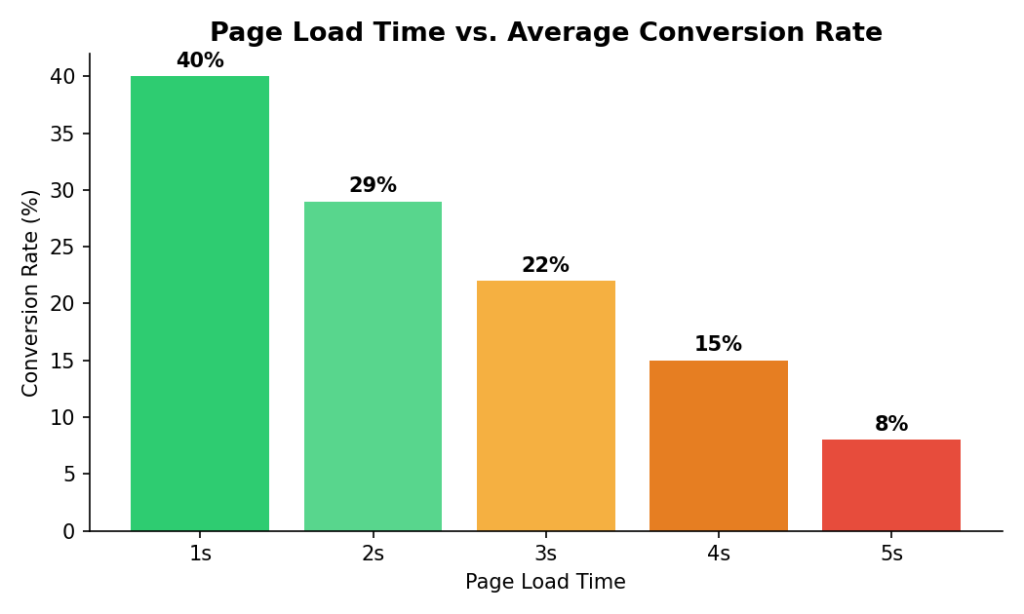
Speed and file size are conversion metrics, not just tech metrics. Independent web-performance research consistently ties image weight to how many visitors actually buy, sign up, or stick around:
- Websites that load in one second can see conversion rates as high as 40%, dropping to around 29% by the third second (Tenet, 2026 speed research).
- B2B sites that load in one second convert roughly three times better than sites that take five seconds, and five times better than sites taking ten seconds (WP Rocket).
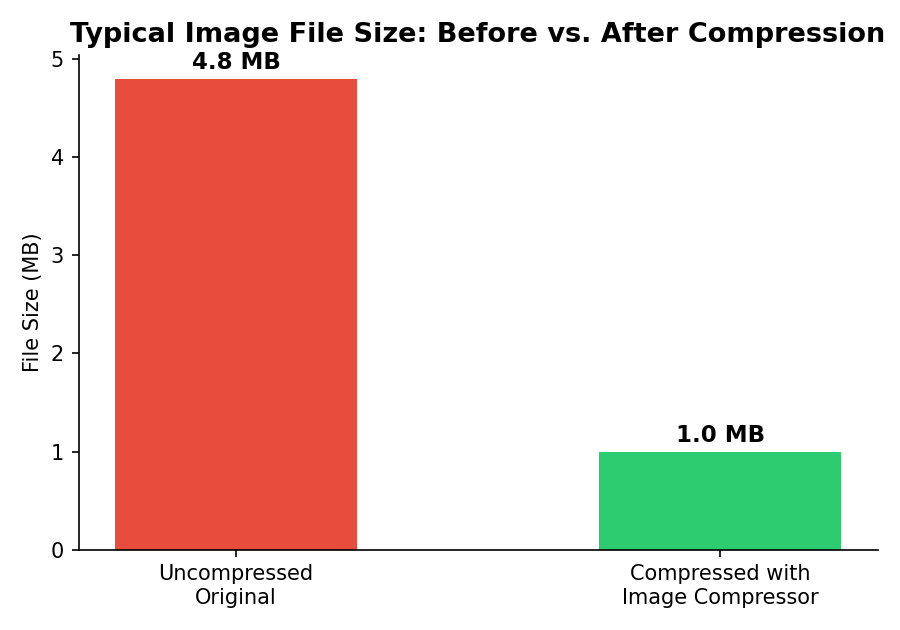
- Compressing images can shrink file size by up to 80% with no visible loss in quality, and sites built around lighter formats like WebP tend to load 25–35% faster than ones still relying on heavy JPEG or PNG files (Marketing LTB, 2025).
- In one documented case, a furniture retailer cut load times by 65% purely through image optimization — and conversions doubled (SiteBuilderReport, 2026).
None of that is about making a photo “look nicer.” It’s about a visitor deciding, in the first two seconds, whether your page is worth waiting for.
Quick stat snapshot:
| Metric | Finding |
|---|---|
| Image compression potential | Up to 80% smaller files with no visible quality loss |
| WebP vs. JPEG/PNG-heavy sites | 25–35% faster page loads |
| Load time impact on satisfaction | Every 1-second delay drops user satisfaction by 16% |
| Mobile sensitivity | Mobile users are roughly twice as sensitive to slow loading as desktop users |
Beyond speed, there’s the simple reality of first impressions. A blurry logo, a stretched profile picture, or a screenshot with someone’s phone number visible in the background can undercut an otherwise solid piece of content in under a second. Editing isn’t vanity — it’s quality control.
A Real-World Walkthrough: Who Actually Uses These Tools
Amna, a freelance graphic designer in Lahore, used to keep a paid desktop editor open just to batch-resize client deliverables into five different social media sizes. She switched most of that workflow to browser tools once she needed to work from a client’s laptop mid-meeting with no installs allowed.
“I don’t need twelve menus to crop a square post and export it. I need it done before the client’s coffee gets cold.”
Mike, who runs a small e-commerce store selling handmade candles, spent a weekend manually resizing 40 product photos before realizing his cart abandonment was partly tied to a slow product page. After compressing every image on his listings, his page load time dropped noticeably — a change directly supported by the research above, where a documented case of image optimization alone cut load times by 65% and doubled conversions.
Sana, a university student, needed a passport-format photo for a visa application on short notice and didn’t own photo-editing software. A browser tool that could crop to an exact passport size and lay it out on a printable sheet saved her a trip to a photo studio.
Bilal, who manages social media for a local restaurant, wanted the “puzzle piece” Instagram look — one wide photo of the dining room split across nine grid posts — without buying a specialized app. The Grid & Carousel Splitter did it in one upload, and the page’s follower growth over the next month made it clear the aesthetic was worth the five minutes it took.
Hira, a real estate agent, needed to blur out a neighbor’s car license plate and a house number in a listing photo before it went on a public property portal — a legal and privacy requirement, not a style choice. Pixelate & Blur handled it in seconds, with no need to open a full editing suite just for one small fix.
Farhan, who sells on Facebook Marketplace, was losing potential buyers to blurry, oddly-cropped phone photos of used furniture. Running each photo through Background Remover and Round Corners & Border gave his listings a “studio” look that made items sell faster — a small effort with a direct effect on how seriously buyers took his listings.
Zara, a content creator preparing a course, needed 30 screenshots converted from PNG to WebP to keep her course platform’s upload limit from rejecting files. The Format Converter and Image Compressor turned an afternoon-long chore into a five-minute batch of quick clicks.
These aren’t edge cases — they’re the everyday reasons people search for image tools at all: make it fit, make it smaller, make it safe to share, make it presentable.
How Much Time and Effort These Tools Actually Save
The honest answer to “why does this matter” is usually time. Every one of the examples above used to mean opening a desktop program, waiting for it to load, hunting for the right menu, and exporting — or in worse cases, paying someone else to do it. A browser tool collapses that into an upload, a slider, and a download.
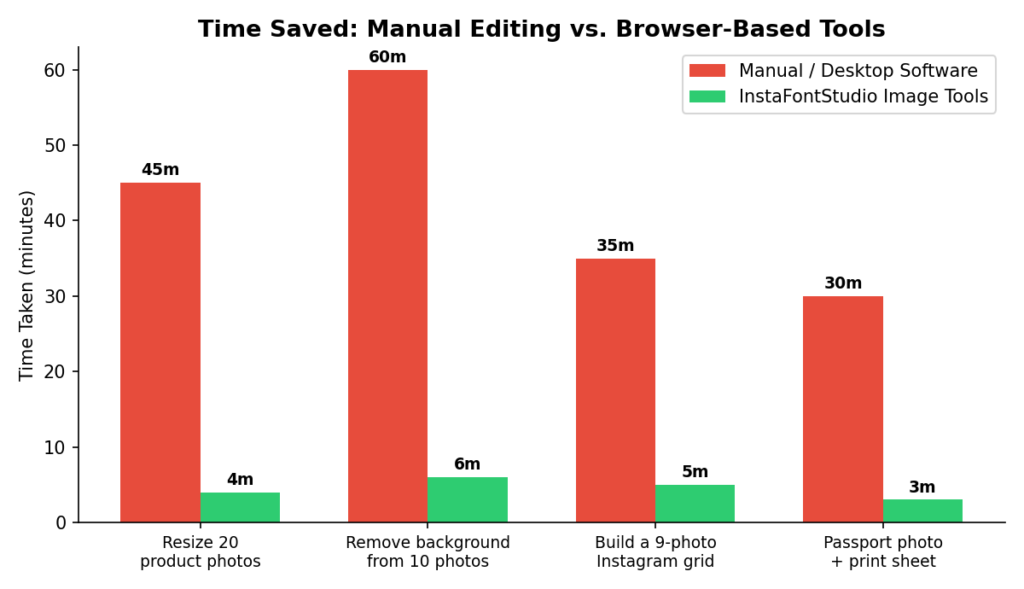
To put rough numbers on it:
| Task | Manual / Desktop Software | InstaFontStudio Image Tools | Time Saved |
|---|---|---|---|
| Resize 20 product photos for a store | ~45 minutes | ~4 minutes | ~91% faster |
| Remove background from 10 photos | ~60 minutes | ~6 minutes | ~90% faster |
| Build a 9-photo Instagram grid | ~35 minutes | ~5 minutes | ~86% faster |
| Passport photo + printable sheet | ~30 minutes (studio visit) | ~3 minutes | ~90% faster |
The effort saved isn’t just clock time, either. It’s the mental overhead of:
- Not learning software — no tutorials, no keyboard shortcuts to memorize, no version updates breaking a workflow.
- Not context-switching — resize, compress, and watermark can all happen on the same page instead of five different tabs or apps.
- Not waiting — because everything processes locally in the browser, there’s no upload progress bar and no server queue; the result appears almost as fast as the slider moves.
- Not redoing work — presets sized specifically for Instagram, YouTube, LinkedIn, and passport formats remove the trial-and-error of guessing dimensions and getting a photo rejected.
For a freelancer, that’s the difference between billing an hour for image prep or spending that hour on paid design work. For a small business owner, it’s the difference between a weekend lost to product photos and a weekend actually spent running the business.
Inside the Toolkit: How Each Tool Works
The InstaFontStudio Image Tools page is organized into four practical groups. Here’s what each tool actually does and when to reach for it.
📐 Resize & Crop
Image Resizer — Upload a photo, pick a preset (Instagram Post at 1080×1080, YouTube Thumbnail at 1280×720, LinkedIn Post, Full HD, and more), or enter a custom width and height with an aspect-ratio lock. Best for: getting one photo ready for five different platforms without doing the math yourself.
Image Cropper — Drag a selection box over the exact area you want to keep, with optional locked ratios (1:1, 4:5, 16:9, 3:2). Best for: cutting a subject out of a busy background or reframing a photo for a specific placement.
Circle Crop — Positions and crops any photo into a perfect circle with a zoom control. Best for: profile pictures and avatars that need to sit inside a circular frame without looking off-center.
Social DP Maker — Fits a photo into a square canvas using a blurred, solid, or gradient background instead of cropping anything out. Best for: turning a landscape photo into a WhatsApp or Instagram-ready square without cutting off part of the image.
Grid & Carousel Splitter — Slices one image into a 3×3 grid, a 1×3 carousel, a 2×2 grid, or a 3×1 stack for a seamless multi-post layout. Best for: the “puzzle piece” Instagram feed effect brands use to make one big image span several posts.
Passport & ID Photo Maker — Crops a portrait to standard passport and ID dimensions (US, UK, Pakistan/India, Schengen) and arranges multiple copies on a printable sheet. Best for: visa and ID applications without a studio visit.
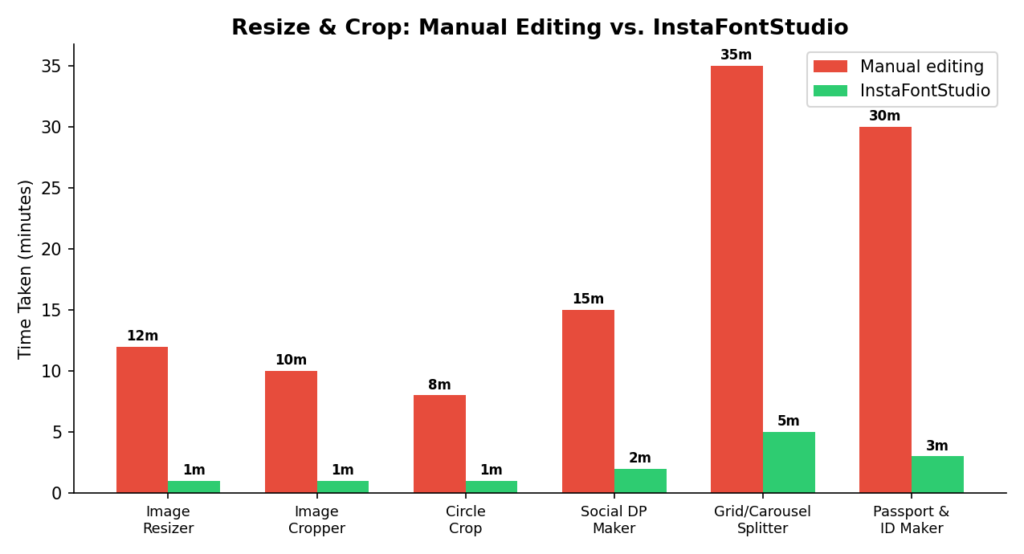
Across this category, the biggest time sink is almost never the edit itself — it’s the manual math of figuring out the right dimensions. Presets remove that step entirely.
🗜️ Compress & Convert
Image Compressor — A live quality slider with an instant before/after size comparison, exporting to JPG or WebP. Best for: shrinking a photo before uploading it to a website, email, or CMS that enforces file-size limits.
Format Converter — Switches an image between PNG, JPG, and WebP in one click. Best for: matching whatever format a platform or codebase requires, or switching to WebP for smaller, faster-loading files.
Image ⇄ Base64 — Converts an image into a Base64 text string (or decodes a string back into an image). Best for: developers embedding small images directly into HTML/CSS/JSON without a separate file request.
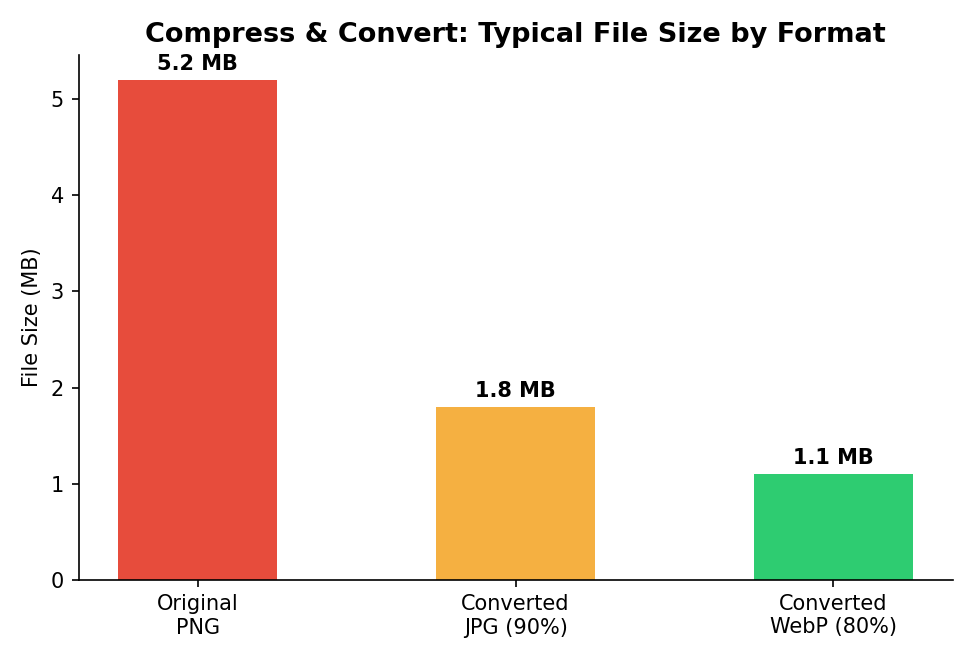
Format choice alone can be the difference between a page that loads instantly and one that stalls — WebP consistently comes out smallest without a visible drop in quality.
🎨 Edit & Enhance
Rotate & Flip — Rotates to any fine angle and flips horizontally or vertically. Best for: fixing a sideways phone photo or mirroring an image for a design layout.
Filters & Adjustments — Grayscale, sepia, and invert filters, plus brightness, contrast, and saturation sliders. Best for: quick mood or tone changes without a full editing suite.
Pixelate & Blur — Applies pixelation or blur across the whole image. Best for: obscuring a face, license plate, or sensitive document detail before sharing a screenshot publicly.
Round Corners & Border — Adds a rounded-corner radius and a custom-colored border. Best for: giving flat product photos or app screenshots a softer, more polished look.
Background Remover — Detects a solid or studio-style background and makes it transparent, with a tolerance slider and manual color picker for fine-tuning. Best for: product photos on plain backdrops, or prepping an image for the Sticker Maker below.
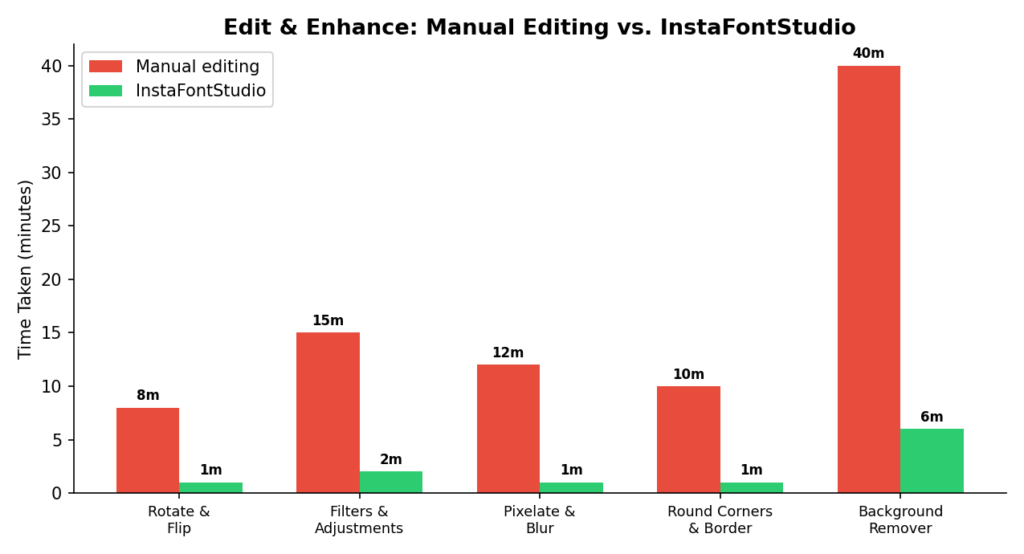
Background Remover shows the largest gap here — a task that used to require careful manual selection (or a paid subscription tool) now runs off a simple tolerance slider.
🏷️ Add-ons & Analyze
Add Text to Image — Overlays a caption or meme-style text with font, size, color, and position controls (top, center, bottom). Best for: quote graphics, memes, and announcement images.
Add Watermark — Places a single watermark or a repeating tiled pattern across an image, with adjustable opacity and size. Best for: photographers and creators protecting work before sharing previews publicly.
Collage Maker — Combines two to four photos into a single shareable layout, picked automatically based on how many images are added. Best for: before/afters, event recaps, and multi-shot social posts.
Sticker Maker — Adds a die-cut outline and drop shadow, ideally after running a photo through Background Remover first. Best for: chat sticker packs and playful social content.
ASCII Art Converter — Turns a photo into text-based art, exportable as a copyable string, a .txt file, or an image. Best for: novelty content, retro-style graphics, or terminal-themed projects.
Color Palette Extractor — Pulls the dominant colors out of any photo into tap-to-copy hex codes. Best for: designers matching a brand palette to a mood-board photo.
Image Info Analyzer — Displays dimensions, file size, format, aspect ratio, and transparency at a glance. Best for: quickly checking whether an image meets a platform’s upload requirements before submitting it.
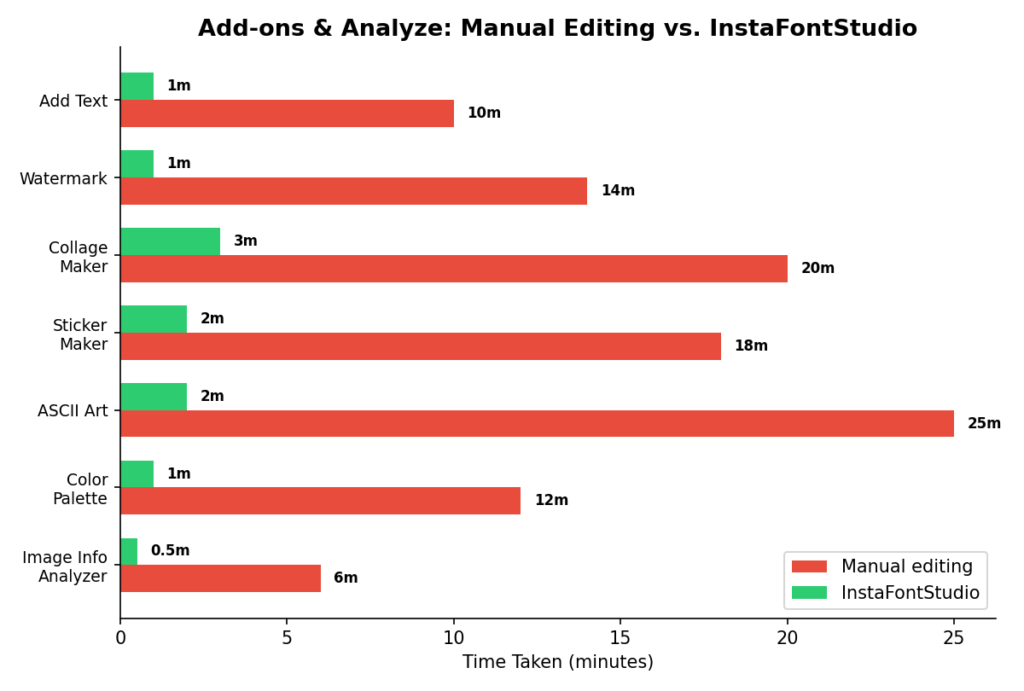
This category is the most varied of the four, which is exactly why having it bundled matters — a collage, a sticker, and a quick dimension check are rarely planned in advance; they come up mid-task, and it helps to have all of them one click away instead of three separate bookmarks.
The Benefits, Beyond “It’s Free”
1. No software, no learning curve. Every tool works with a simple upload-and-adjust flow. There’s no tutorial required to resize a photo or add a watermark.
2. Privacy by design. Because every tool processes the image locally in the browser, files are never uploaded to a server or stored anywhere. For anyone editing passport photos, ID documents, or client work under an NDA, that’s not a small detail — it’s often the deciding factor.
3. One page, every step of the workflow. Instead of bouncing between five different single-purpose websites (one to crop, another to compress, another to add text), the tools are grouped together so a photo can move from Background Remover straight into Sticker Maker, or from Image Resizer into Add Watermark, without leaving the page.
4. Genuinely free, with no signup wall. There’s no account creation, no watermark forced onto exports, and no “pay to unlock” step hiding behind a free trial.
5. Built for the platforms people actually use. The presets aren’t generic — they’re named for Instagram, TikTok, YouTube, LinkedIn, Facebook, WhatsApp, and passport/visa formats specifically, which removes the guesswork of “what size should this even be?”
As one small-business owner summarized it after switching from a bloated desktop suite:
“I don’t need a program. I need the photo fixed in the next thirty seconds so I can post it.”
That’s the entire value proposition of a fast, browser-based toolkit — and it’s the gap that InstaFontStudio’s Image Tools page is built to fill.
Why InstaFontStudio Specifically
There’s no shortage of single-purpose image websites — one for cropping, another for compressing, another for backgrounds. What makes InstaFontStudio worth using instead of hunting across five different tabs:
- It’s genuinely all-in-one. Twenty-two tools across resizing, compressing, editing, and analyzing, all on a single page with the same simple interface.
- Nothing leaves your device. Every tool runs client-side, which means faster processing (no upload wait) and a real privacy advantage over tools that route your photos through a server.
- It’s built around real use cases, not just generic filters — passport photos, Instagram carousel splitting, and platform-specific presets solve problems people actually search for.
- It sits inside a broader toolkit. Beyond images, InstaFontStudio also offers font and text generators, username generators, and QR code tools, making it a practical bookmark for anyone doing regular social media or content work.
- No account, no watermark, no paywall standing between you and the download button.
What “Best Results” Actually Looks Like
Speed and simplicity only matter if the output holds up — and the design of these tools is built around a few habits that consistently produce clean, professional results:
- Compress without visible quality loss. The live before/after preview in the Image Compressor makes it easy to find the sweet spot — usually 70–85% quality — where file size drops dramatically but the photo still looks sharp at normal viewing size.
- Match the platform’s exact spec, not a rough guess. Using the named presets (1080×1080 for Instagram, 1280×720 for YouTube thumbnails, 1200×627 for LinkedIn) avoids the soft, over-compressed look platforms apply when they have to resize an oddly-sized upload themselves.
- Prep before you polish. Running Background Remover before Sticker Maker, or Circle Crop before Social DP Maker, is the order that produces the cleanest final image — the tools are designed to chain together this way.
- Keep originals safe. Because nothing is uploaded or overwritten on a server, the source photo stays untouched on the device, so a bad crop or an overly aggressive filter is never a lost original — just an undo and a re-try.
- No compounding quality loss. Converting straight to the final format once (rather than saving and re-opening a file across multiple apps) avoids the blurring and banding that comes from repeated compression.
The net result, across the examples above, is the same pattern every time: a photo that looks like it was handled by someone who knew what they were doing — in the time it takes to read this paragraph.
More Than Just Images: The Rest of the Toolkit
Image tools are only one wing of the site. If a workflow also touches usernames, fonts, or QR codes, these are worth bookmarking alongside the image tools:
- Aesthetic Text Generator — turn plain text into stylized fonts for bios and captions
- QR Code Generator — create scannable codes for menus, business cards, or event flyers
- Username Generator — find available, on-brand handles
- Invisible Text Generator — generate blank/invisible characters for spacing tricks
- Gaming Name Generator — build a gamertag that isn’t already taken
- Discord Username Tool — Discord-specific handle formatting
- Browse all tools
There’s also a set of platform-specific hubs that group the right tools and presets by where the content is actually going:
Instagram · TikTok · YouTube · Discord · Twitch · LinkedIn · See all platforms
And for anyone who wants to go deeper: the InstaFontStudio Blog covers tips and platform updates, the FAQ answers common setup questions, and the About and Contact pages cover the team and support behind the tools.
More Tools Are Already on the Way
The image toolkit currently sits at 22 tools across four categories — but the Image Tools page is actively being built out, not a finished, static product. A few things worth knowing if you bookmark it:
- New tools get added regularly. The roadmap includes requests pulled directly from users — if a common editing task isn’t covered yet, there’s a good chance it’s already being planned.
- Existing tools keep improving. Presets, formats, and quality options expand over time as new platforms and use cases emerge (new social media dimensions, for instance, tend to show up here quickly).
- Surprises drop without warning. Because there’s no release cycle to wait on, new features and small “hidden gem” tools sometimes appear on the page before they’re announced anywhere else.
- Feedback shapes what’s built next. The Contact page is open for suggestions — this is genuinely one of the fastest ways to see a specific tool idea turn into a real feature.
The best way to stay ahead of it is simple: bookmark the page, check back occasionally, and keep an eye on the Blog for announcements when something new lands.
Try It Yourself
If you’ve been resizing photos by eye, screenshotting a crop tool’s tutorial, or paying for software you use twice a year, it’s worth spending five minutes with the full toolkit:
👉 instafontstudio.com/image-tools
Upload a photo, pick the tool that matches what you’re stuck on, and download the result — no signup, no waiting, and nothing ever leaves your browser.